Printing and jobs
Send a template and its runtime data to a discovered printer, then inspect and manage the resulting job.
Before printing
- The template is saved and belongs to the selected project.
- The Print Agent is online and Active.
- The target printer is visible and enabled for remote jobs from Workspace > Printers.
- The printer exposes at least one usable format.
- The JSON uses the exact names of the template's dynamic fields.
Submit a manual print request
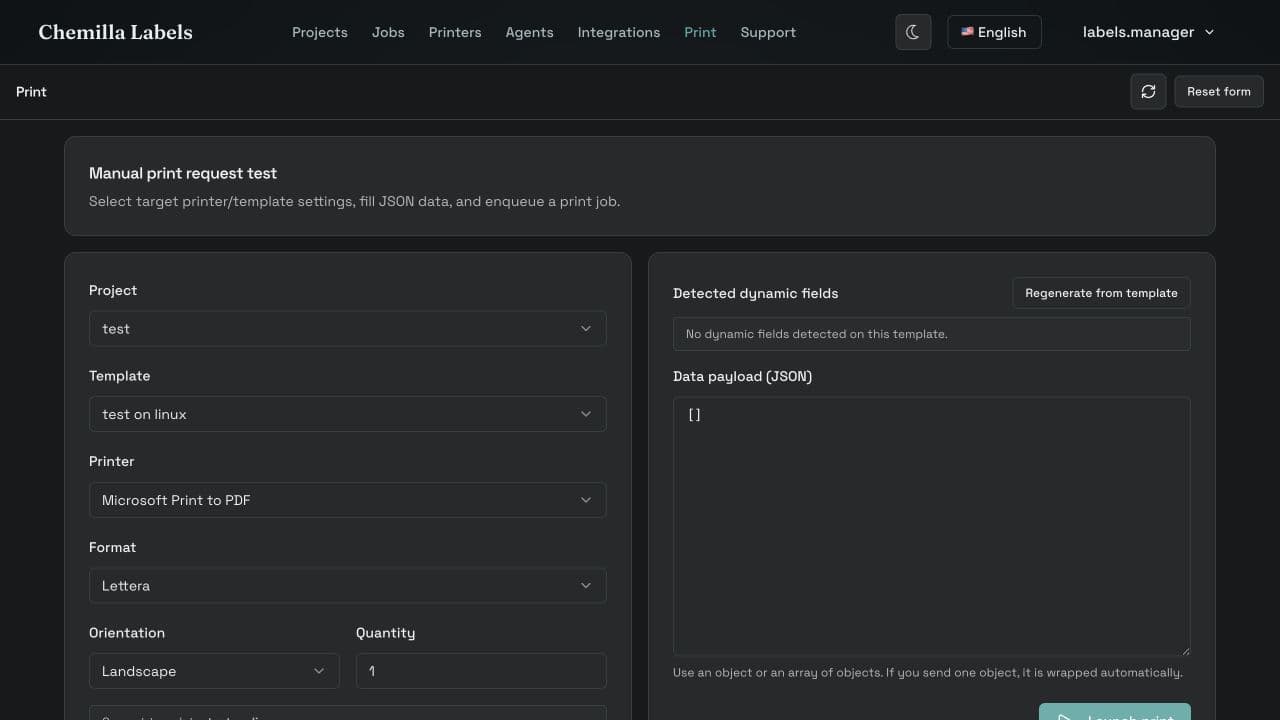
- 1
Choose project and template
The Print page lists the templates available in the selected project.
- 2
Choose printer and format
Select a printer reported by an agent and one of its available paper formats.
- 3
Set orientation and quantity
Choose portrait or landscape and the number of copies for each label record.
- 4
Review detected fields
Regenerate from template when the field list or payload should be rebuilt from the saved template.
- 5
Enter data
Provide one JSON object or an array of objects. One object is wrapped automatically.
- 6
Launch print
The page confirms the queued job ID. Use that ID to follow the request from Jobs.
Shape the data payload
Use an object for one label record or an array for multiple records. Each key maps to a dynamic field name in the template.
[
  {
    "batch": "A1",
    "lotNumber": "LOT-2026-0042",
    "expiryDate": "2028-07-30"
  },
  {
    "batch": "A2",
    "lotNumber": "LOT-2026-0043",
    "expiryDate": "2028-08-15"
  }
]
Monitor and manage jobs
Jobs shows the job ID, date, state, reason, printer, template, copies, label count, total labels, and agent. Refresh when waiting for the latest agent update.
Available actions depend on the current job state and your permissions. The interface can pause, resume, restart, and delete selected jobs.
- Use the reason field as the first diagnostic signal for a failed or stalled job.
- Verify the printer and agent columns before retrying; a restart does not repair an offline route.
- Use the printer detail page to see jobs and paper formats for one printer.
- On the agent machine, use Local Jobs to preview generated output or reveal synchronized job files.